Introduction
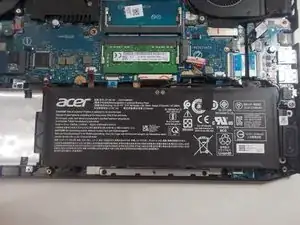
Laptop batteries often wear out the fastest of all laptop components, resulting in lower charge capacity and battery life, or even dying entirely. This guide will show you how to safely remove the back cover and replace the battery of your Acer Nitro 5 AN515-55-55M1.


-
-
Make sure the device is off and unplugged from power.
-
Flip the device so the bottom is facing up.
-
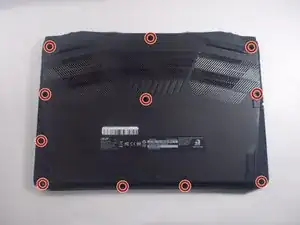
Remove 11 screws from the bottom case using a Phillips #1 screwdriver.
-
-
-
Make sure the laptop is completely powered off and unplugged from any power source. Flip the laptop over so the bottom cover is facing up. Use a Phillips #1 screwdriver to remove the eleven screws securing the bottom cover. Keep track of the screws, as losing one can make reassembly difficult. Screws can also be different lengths.
-
-
-
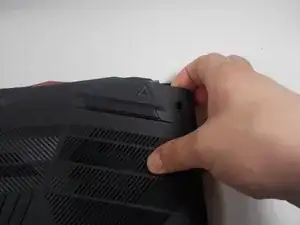
Lift the top left and right corners up and away from the device.
-
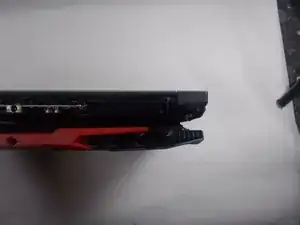
Remove the panel from the laptop.
-
-
-
Insert an iFixit opening tool into a gap along one edge of the bottom cover and gently pry upward to release the plastic clips. Work your way around the edges until all clips have released. You may hear loud clicking sounds as the clips disengage, this is normal. Lift the bottom cover away from the laptop and set it aside.
-
-
-
Locate the two speaker connectors on the motherboard. Use and iFixit opening tool to gently pry each connector straight up from its socket. Caution: Potential for device damage. Do not pull on the speaker wires, only apply pressure to the plastic connectors.
-
-
-
Lift each speaker straight up out of its housing. If any adhesive or tape is securing the speakers, gently peel it back before lifting. Set the speakers aside.
-
-
-
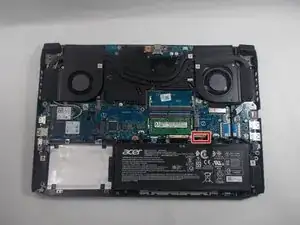
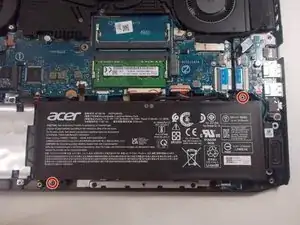
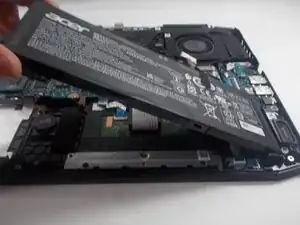
Remove the two screws from the battery with a Phillips #1 screwdriver.
-
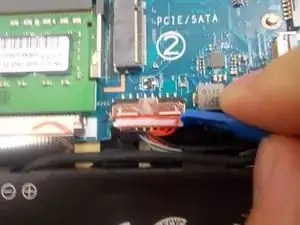
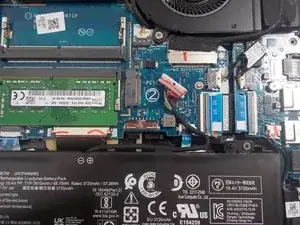
Remove the battery by pulling up and out from the left side.
-
Congratulations! You have successfully replaced the battery of your Acer Nitro 5 AN515-55-55M1!