
Introduction
Steps on how to enable TPM 2.0 (Trusted Platform Module) in the Motherboard BIOS Tuf_B450M_PLUS_GAMING.
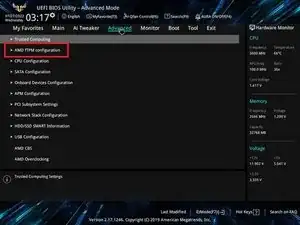
By default, motherboards with AMD or Intel chipsets released before the arrival of Windows 11 have TPM 2.0 disabled, regardless of model and manufacturer, requiring you to enter the BIOS and activate the option to follow the normal system installation process. .
-
-
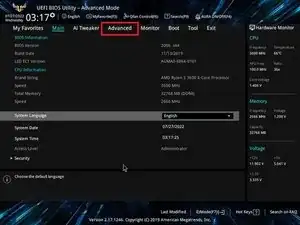
Click on the "Advanced Mode(F7)" option or press the shortcut key "F7" to access the "Advanced Mode".
-
-
-
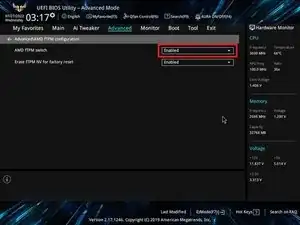
Under 'AMD fTPM switch' or 'TPM Device Selection', change the option from 'Disabled' to 'Enabled', thus enabling the card's TPM.
-
-
-
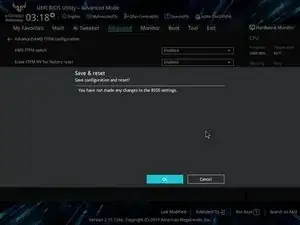
After enabling TPM, press "F10" key to save all changes, then click "OK". Okay, now the machine will be restarted with the TPM enabled.
-


6 comments
It would seem that the Sabertooth 990 FX with 8 core 220 Watt CPU and 32 Gb of memory and TPM card onboard, isn’t good enough for the TPM Switch to be accepted by the Bios or Win 10 or be aloud to pass to the upgrade stage.. What a rip Asus, this nearly new (a couple of generations (which is a lifetime in computing) won’t accept TPM even though it’s right there??!! WTF? There must be a workaround I’m missing.
For your machine (Windows 10 and 11) to recognize the TPM, the "security device support" must be activated in the bios.
Manuel -
Me aparece la misma pantalla que la de la imagen y me pone el mensajito abajo de " Please press DEL or F2 to enter UEFI BIOS settings" Y yo presiono F2 y no me funciona nada osea se queda en el mismo sitio, ya probé a presionar DEL tambien pero no funciona
Alguien podría ayudarme con este problema?
En las placas ASUS, además de las teclas DEL y F2, también puedes intentar presionar F8 justo después de encender el equipo.
Esa tecla normalmente abre el menú de Boot, donde podrás ver todos los dispositivos disponibles para iniciar y también acceder al Setup (BIOS/UEFI).
Manuel -
mir wird die einsellug mit dem tpm garnicht erst angezeigt
Wenn die TPM-Einstellung im BIOS nicht angezeigt wird, kannst du Folgendes versuchen:
1. Sicherstellen, dass der BIOS-Modus auf „Advanced Mode“ (Erweiterter Modus) steht – drücke dazu F7, um von „EZ Mode“ zu wechseln.
2. Suche unter Advanced → PCH-FW Configuration oder Security → Trusted Computing nach der Option TPM Device Selection oder PTT.
3. Bei ASUS-Mainboards heißt die Option oft Intel PTT (für Intel-CPUs) oder fTPM (für AMD-CPUs).
4. Falls sie trotzdem nicht erscheint, aktualisiere das BIOS auf die neueste Version, da ältere Versionen diese Option manchmal nicht anzeigen.
Manuel -
Me aparece la misma pantalla que la de la imagen y me pone el mensajito abajo de " Please press DEL or F2 to enter UEFI BIOS settings" Y yo presiono F2 y no me funciona nada osea se queda en el mismo sitio, ya probé a presionar DEL tambien pero no funciona
Alguien podría ayudarme con este problema?
itsfeli 2006 -
@itsfeli2006 ¿Se reconoce su teclado durante el arranque? Antes de iniciar el sistema operativo, es posible que tenga un problema porque está utilizando otro USB que no sea el USB 2 en la parte posterior, consulte el manual o mire la etiqueta en la parte posterior donde conecta los elementos; a menudo, el manual o la etiqueta especificarán un puerto preferido para el mouse y el teclado. USB 2 es más compatible con la operación en BIOS. Además, su manual le indica varias formas de ingresar al BIOS, verifique que si aún no puede ingresar. Si no lo tiene, busque en línea, pero serán los puertos al lado del puerto PS/2, que también puede usar si es lo que tiene.
Juan Garcia -