Introduction

Prereq for removing the expansion bay after removing the midframe.

  1. lRVXxLICEGdocSrI
    lRVXxLICEGdocSrI
    JCgtidXYDtu1PaVO
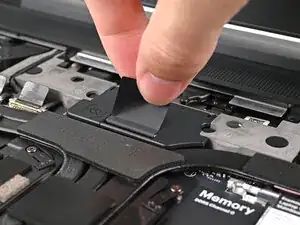
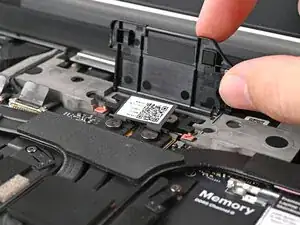
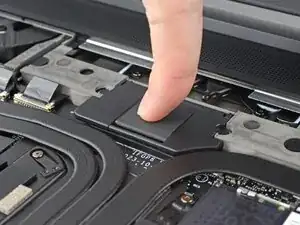
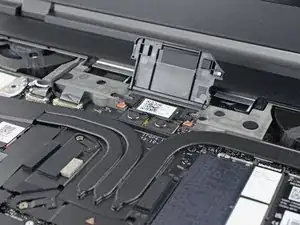
    • Lift the interposer door by its black pull tab and let it rest upright.

  2. QUSO5HwTLuMIAlVF
    QUSO5HwTLuMIAlVF
    UqPaLZBxyUeWB3Xm
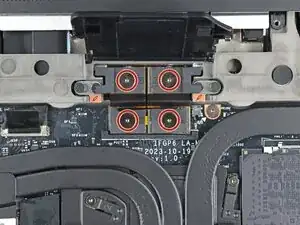
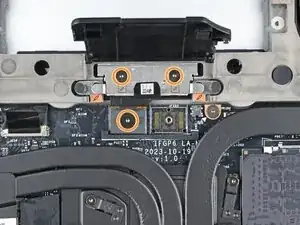
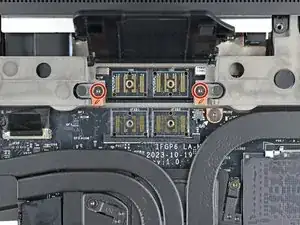
    • If you have the Graphics Module installed, your interposer will have four screws. If you have the Expansion Bay Shell installed, you'll have three screws instead.

    • If you have the Graphics Module, use your Framework Screwdriver to loosen the four captive T5 Torx screws securing the interposer.

    • If you have the Expansion Bay Shell, use your Framework Screwdriver to loosen the three captive T5 Torx screws securing the interposer.

  3. RRTnHiOVf2SmbBIL
    RRTnHiOVf2SmbBIL
    Xd5pXwSgLBOLaLnx
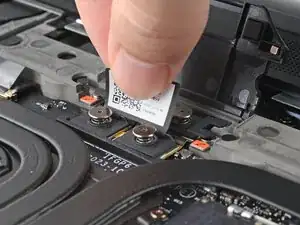
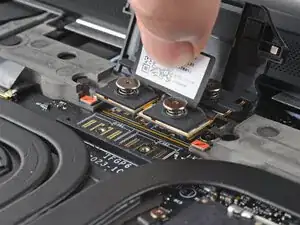
    • Lift the interposer by its pull tab and remove it.

  4. vDRVlx6RISCSiUcm
    vDRVlx6RISCSiUcm
    nrTLBFYiR4YNSALf
    dLPk65iSypbKMwLt
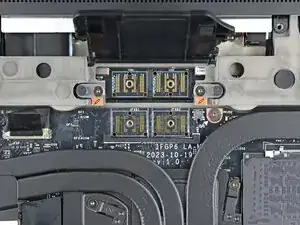
    • Use your Framework Screwdriver to loosen the two captive T5 Torx screws securing the module in the Expansion Bay.

    • Close the interposer door before continuing.

  5. EV6hxOxWhSeLhJgx
    EV6hxOxWhSeLhJgx
    OvgJqGPQnSC15AdL
    wQBqnhWGprulkl1l
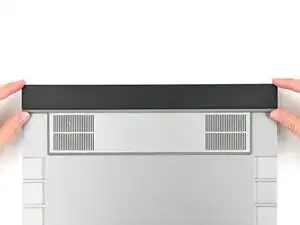
    • Close your laptop and flip it over.

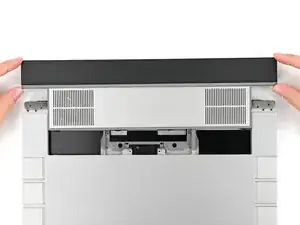
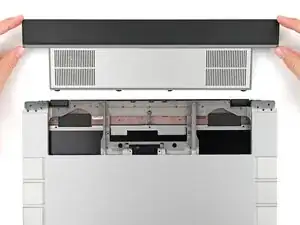
    • Slide the Expansion Bay Module out of the laptop and remove it.

    • The module should slide out easily. If you feel any resistance, check if the screws holding it in place are fully loosened.

    • Flip your laptop and reopen it.

Conclusion

To reassemble your device, follow these instructions in reverse order.

Alex Diaz-Kokaisl

Member since: 16/01/22

215075 Reputation

0 comments