Introduction

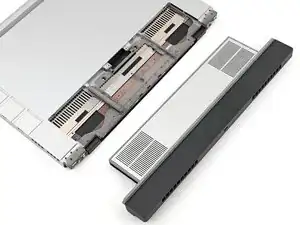
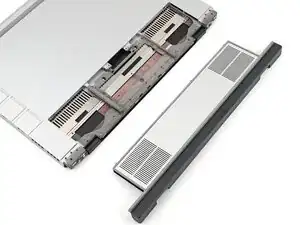
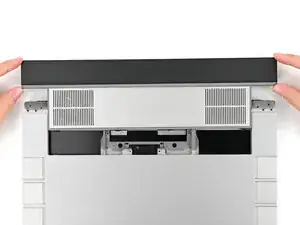
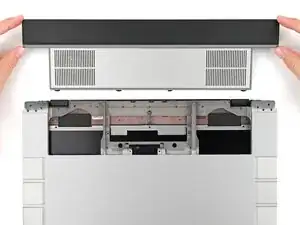
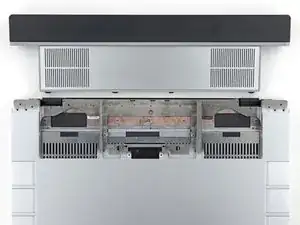
Use this guide to remove the expansion bay in your Framework 16" laptop.

  1. bfic3ipYvHRgJxJk
    bfic3ipYvHRgJxJk
    sdsaKC2WNQyYiCeK
    • The Expansion Bay can either fit a Graphics Module or the Expansion Bay Shell—the removal and installation procedures for both are nearly identical.

    • The following instructions will point out any differences.

  2. BHwA1RJF1lpIAq4e
    BHwA1RJF1lpIAq4e
    VkpLUbh4wtSFIZ2u
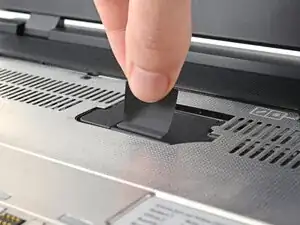
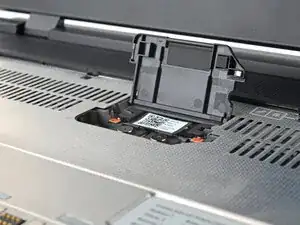
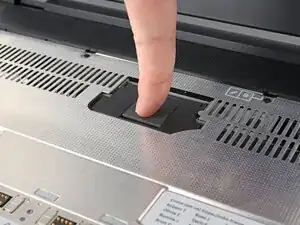
    • Lift the interposer door by its black pull tab and let it rest upright.

  3. oKdJHon6nNCIm1ii
    oKdJHon6nNCIm1ii
    Y5pjOulyPVDGZair
    Dx6pYosnUoQxCI4K
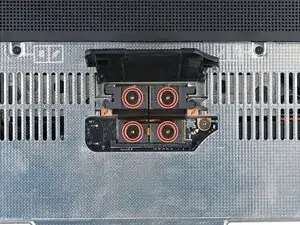
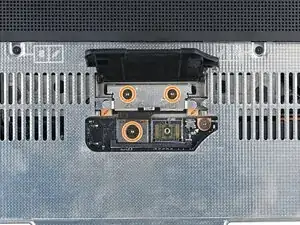
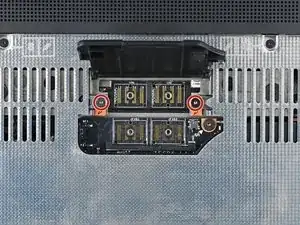
    • If you have the Graphics Module installed, your interposer will have four screws. If you have the Expansion Bay Shell installed, you'll have three screws instead.

    • If you have the Graphics Module, use your Framework Screwdriver to loosen the four captive T5 Torx screws securing the interposer.

    • If you have the Expansion Bay Shell, use your Framework Screwdriver to loosen the three captive T5 Torx screws securing the interposer.

  4. KqXx1rITOYMfOEeI
    KqXx1rITOYMfOEeI
    EgXNiThu5ZAp2qo1
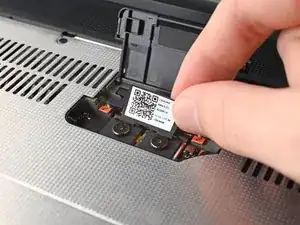
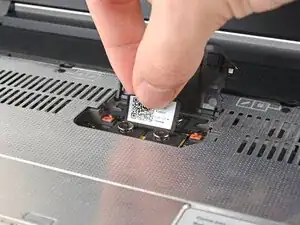
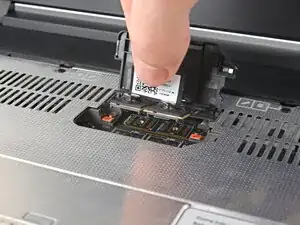
    • Lift the interposer by its pull tab and remove it.

  5. 1xM31Q5HLnOx22yi
    1xM31Q5HLnOx22yi
    BFNZQlRYjBrJIHOJ
    • Use your Framework Screwdriver to loosen the two captive T5 Torx screws securing the Expansion Bay Module.

    • Close the interposer door before continuing.

  6. LD4vR4HCV1GgbgfH
    LD4vR4HCV1GgbgfH
    qZQIOkPbUWX5wfYK
    C2BItTmGoSeimSuN
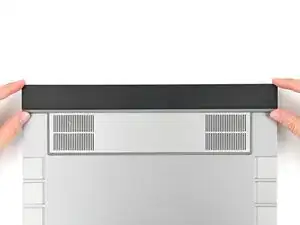
    • Close your laptop and flip it over.

    • Slide the Expansion Bay Module out of the laptop and remove it.

    • The module should slide out easily. If you feel any resistance, check that the screws holding it in place are fully loosened.

Conclusion

To reassemble your device, follow these instructions in reverse order.

Repair didn’t go as planned? Try some basic troubleshooting, or ask our Answers Community for help.

Alex Diaz-Kokaisl

Member since: 16/01/22

215075 Reputation

0 comments