Introduction
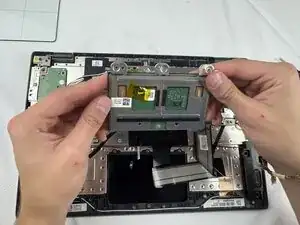
Is the touchpad for your Lenovo 14e Chromebook unresponsive, lagging inputs, or simply needing to be updated and replaced? In this guide you will find the necessary steps to replace the touchpad on your Lenovo 14e Chromebook.
It is recommended to take a look at the troubleshooting guide for common issues with the Chromebook keyboard and touchpad to determine whether or not a replacement is necessary.
Before continuing with any of the steps in this guide, ensure that the Chromebook has been powered off, and unplug it from its charger and disconnect it from any other devices.


-
-
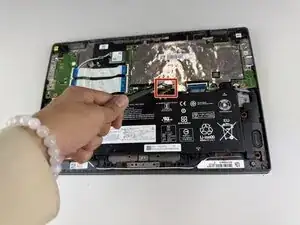
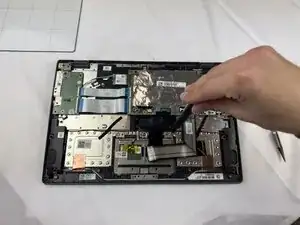
Gently disconnect the power interface using a pair of tweezers.
-
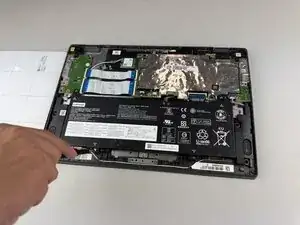
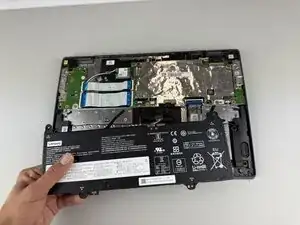
Lift the battery out of the Chromebook.
-
-
-
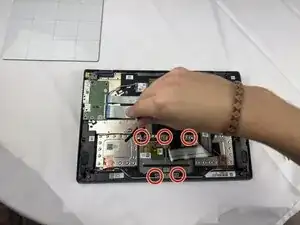
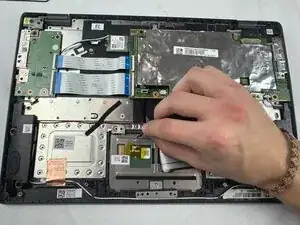
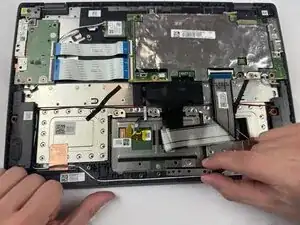
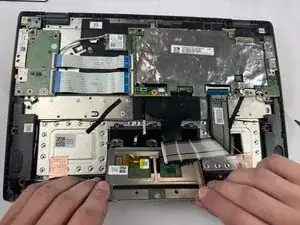
Remove the frame holding the touchpad in place.
-
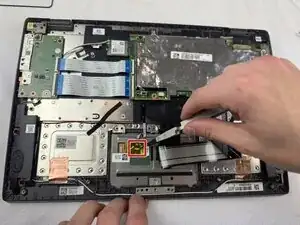
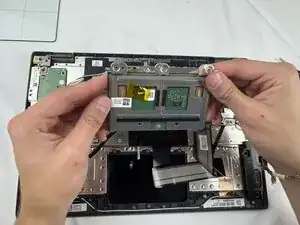
Gently lift the touchpad from the Chromebook, and remove it.
-
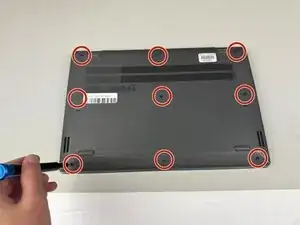
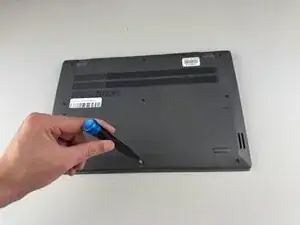
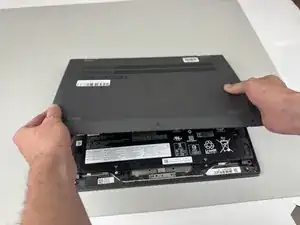
To reassemble your device, follow these instructions in reverse order.